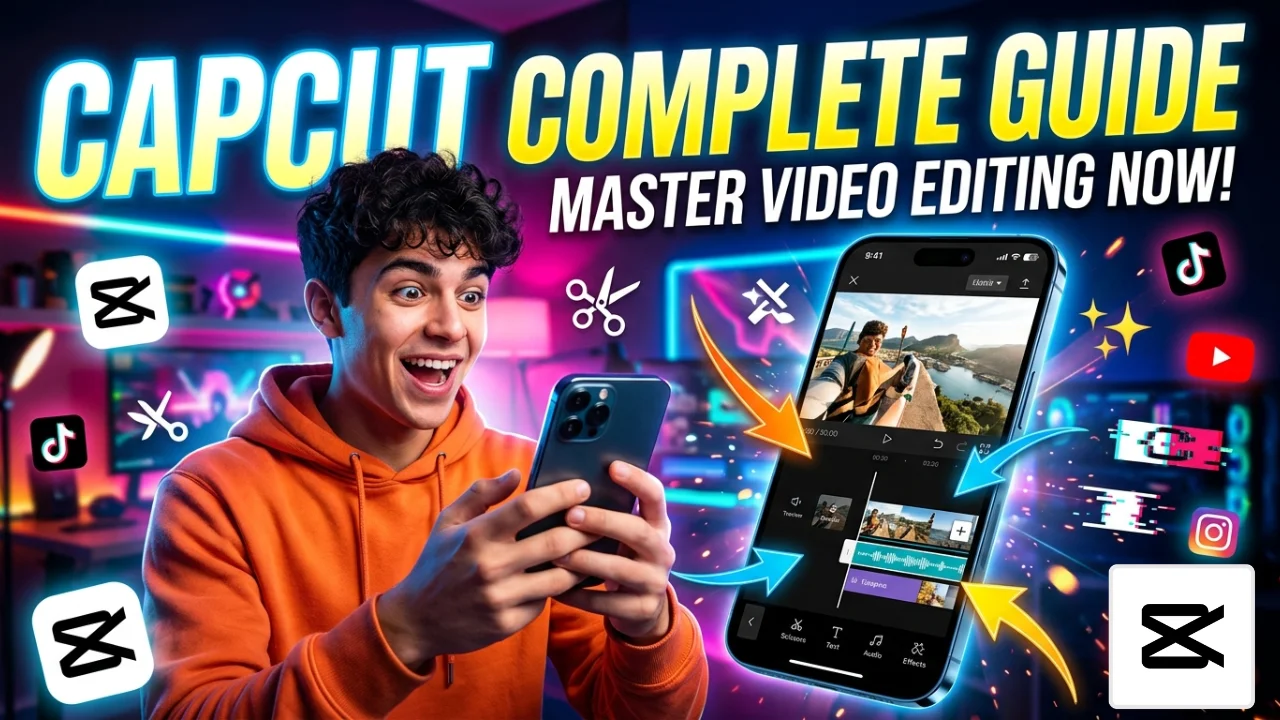
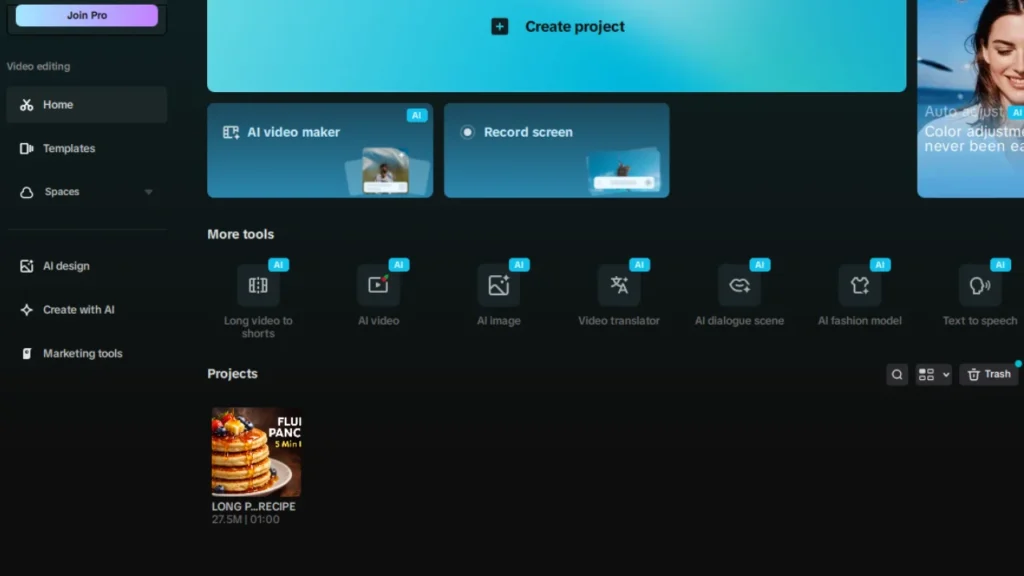
CapCut offers a full video editing solution through its AI-based mobile, desktop and web versions which enables users to make rapid professional video edits with no watermarks in its free edition. CapCut users start editing by bringing media files into the program multi-track timeline which enables them to edit video clips and add visual effects and use AI features such as automatic captioning and background elimination. CapCut provides free video editing software which enables both novice and experienced users to produce high-quality video content. The best free video editor software developed by ByteDance functions as a social media video creation tool tailored to work with TikTok and Instagram and YouTube platforms. The interface offers users a media panel and preview player and timeline and details panel which enables them to navigate through the program easily. The CapCut enables users to create new projects by importing videos or photos which they can then drag to the timeline while they can use drag-and-drop for basic adjustments making it accessible even for first-time users. The CapCut service offers export options which include up to 4K and 8K resolution for content creators who want to optimize their videos for platforms such as Reels and Shorts.
Key Features of CapCut
CapCut provides multiple timelines through its essential features which include 3000+ ready-to-use templates and visual effects and transition effects and a comprehensive music collection. The workflow gets optimized through AI tools which include automatic captioning and text-to-speech and background elimination, while chroma key enables green screen effects.
| Feature Category | Key Examples in CapCut | Free/Pro Availability | Pro Tip |
| Basic Editing | Trim/split, speed ramping (ease-in/out curves), keyframes (position/scale/rotation) | Free | Use bezier curves for natural motion |
| AI Tools | Auto-captions (95% accuracy), background remover, noise reduction, video upscaler | Pro-heavy (Free basics) | Bilingual captions for global reach |
| Visual Effects | Chroma key (green screen), motion blur, glitch/retro filters, 3D LUTs | Free + Premium packs | Layer masks for selective effects |
| Audio Suite | Voice changer (10+ voices), beat detection, auto-ducking, EQ presets | Free | Keyframe volume for cinematic fades |
| Assets Library | 10K+ templates, fonts (Google/Adobe sync), stickers, sound FX | Free (Limited)/Pro (Unlimited) | Trend search for viral hooks |
| Export/Sharing | 4K/8K/60fps, GIF/MP4, no watermark, direct TikTok/IG upload | All versions | Batch export for A/B testing |
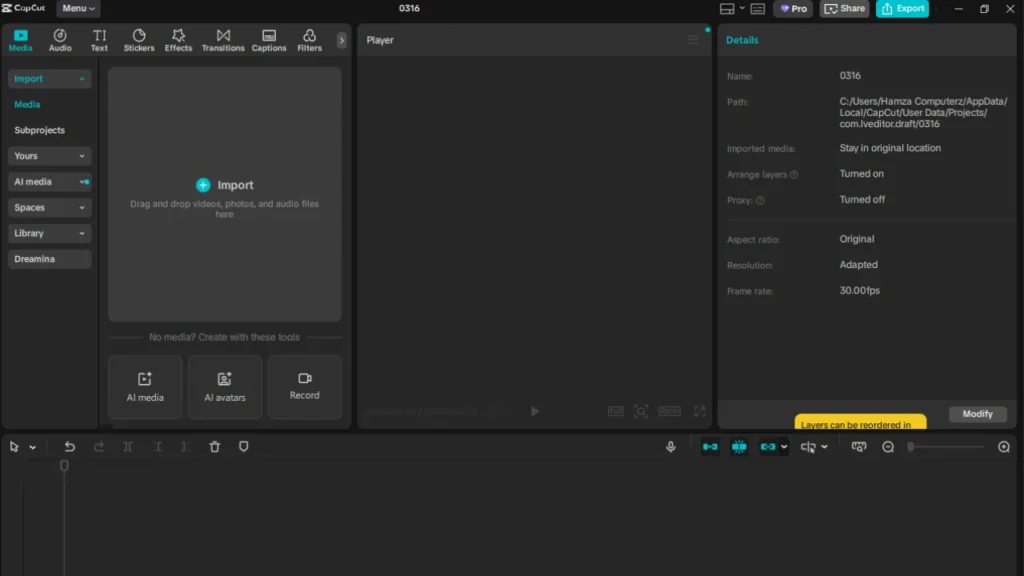
How to Edit Videos in CapCut Basic Steps
CapCut provides a straightforward editing process that consists of seven distinct steps.
- Step 1: Open CapCut, then New Project, then Select aspect ratio 9:16 for Reels.
- Step 2: Import media through the tap of the “+” button, then select 10 or more clips or photos that include HEIC and RAW formats. The timeline assembly process begins with users dragging clips into track 1, which automatically snaps to beats when users first add music.
- Step 3: They need to trim and arrange clips by dragging the edges of clips and using ripple edit to preserve gaps, and using scissors to split and delete extras.
- Step 4: They need to touch the clip and select Adjust (which increases brightness by 20 percent and contrast by 15 percent) to create a Transitions effect, which includes fade and dissolve transitions with 0.5-second duration and overlay text that animates through 50+ preset options.
- Step 5: They start by importing an audio track, then they extract audio from video content, and finally, they use automatic or manual keyframes to duck the music volume during voice segments.
- Step 6: They need to preview the full timeline while adjusting speed curves to export data at 1080p/60fps (which takes under 2 minutes for 1-minute videos).
READ ALSO: AI Video Editing Apps For Beginners
Using CapCut Templates for Fast Editing
The CapCut system enables users to create viral internet content which includes pre-made effects and musical matches and moving text through their editing process. Users need to access the Templates tab on the home screen to search for “Vibes” or “Highlights” which provide content relevant to trends while they can preview user-generated content which has received over 1M views. They need to Replace placeholders your face over influencer’s, auto-fit via AI face detection which users need to Customize text/colors/timing and Add stickers or voiceover. The system synchronizes templates with your video segments which maintain the original timing, enabling you to produce a 15-second Reel within 60 seconds. The community sharing process allows users to save custom ones by going to Edit and then submitting the Template with a thumbnail and music credits. The weekly updates introduce international music hits which include K-pop transitions and animations to the platform, which now allows users to produce high-quality content in about 10 minutes.
Common Mistakes Beginners Should Avoid Using CapCut
Beginner editors waste time while producing low-quality videos because they fail to recognize CapCut problems, which cause their video projects to become disorganized and their video quality to decrease. Your developments will save you time because they enable you to identify editing problems, which result in more professional content that will attract viewers on TikTok, Instagram Reels, and YouTube Shorts.
- Mistake 1: Unorganized Imports: Dumping 50+ raw clips straight into the timeline without sorting creates chaos, making it impossible to find B-roll or intros later. The solution requires users to create Media tab Bins, which function as custom folders with labels for Intros B-Roll transitions and Audio tracks.
- Mistake 2: Effect Overload: Slapping 10+ transitions, filters, and stickers per clip screams “amateur,” overwhelming viewers and slowing exports. The 80/20 rule requires users to limit their scene effects to a maximum, which they should select based on their scene’s emotional atmospheres.
- Mistake 3: Audio Neglect: Blasting royalty-free music over voice-overs results in muddy, unwatchable videos since 85% of social viewers watch muted. Noise Reduction serves as the starting point, which needs to be completed before Auto-Duck handles the automatic music transitions that decrease volume during speech and the user-controlled volume curve adjustment.
- Mistake 4: Preview Mismatch: Relying on low-res timeline preview leads to nasty surprises like cropped text or blurry 4K exports. The High-Quality Preview function can be activated through two methods, which include using Settings then Playback then HQ On or Proxy Editing that generates 1080p versions.
- Mistake 5: No Backups: App crashes or battery death wipes unsaved progress, a nightmare for long edits. The solution requires users to establish Auto-Save, which requires users to Export Draft every hour while using Cloud Sync. All projects should be duplicated before conducting experiments through the Save As function.
- Mistake 6: Ignoring Platform Optimization: Exporting square videos for vertical platforms gets rejected by algorithms. The solution requires users to set up the Canvas target ratio at project start, which uses 9:16 Reels and 16:9 YouTube as the default settings. The Algorithm Guides provide in-app users with information about the current trending lengths, which range from 15 seconds to 60 seconds.
CapCut Free vs Paid Version
CapCut Free serves as the Best Free Video Editor because it delivers over 90% of casual creators and students and Pakistani content creators with professional-grade tools that come at no cost or watermarks. The version enables users to conduct unlimited exports, which they can perform at 4K resolution and 60fps, while accessing core editing functions that include multi-track timelines and trimming.
The user will receive access to thousands of community-created templates and a big collection of free musical tracks, fundamental sound effects and stickers and fonts, which they can use to make TikTok trends and Instagram Reels. The user will encounter limitations that affect their ability to create high-volume content when they start using CapCut Free. The CapCut Pro (Paid Version) costs $7.99 per month or $74.99 annually, which provides a 35% discount, or $34.99 for six months with a 7-day free trial that allows testing without commitment. The upgrade expands CapCut from its current free capabilities, which hinder professional usage, into a complete software suite that competes with desktop programs like Premiere Pro at a lower price. The complete AI arsenal includes Video Translator, which provides lip-sync capabilities to dub Urdu content into English and Hindi, and Arabic for global distribution.
CapCut Advanced Editing Techniques
CapCut advanced editing techniques help you make professional videos that have the quality of Hollywood studio films. The tools offer more than basic cutting functions.
- They enable you to build animated sequences that follow moving objects while you correct colors and perform additional tasks.
- Keyframes function as straightforward animation tools. Right-click a clip. Create points. The zoom effect starts at 100% and expands to 150% over a duration of 2 seconds.
- Choose smooth curves that include the option. It achieves a natural movement that behaves like a real camera motion. Copy keyframes to other clips for fast work. The technique enables you to test how a ball moves through space in a cricket video.
- Motion Tracking follows moving things with AI. Choose an object for tracking, which can include either a car plate or a player’s face. Add text or effects. The solution sticks to surfaces with 95% accuracy. Small errors require manual repair work. The solution works perfectly for creating labels.
- HSL Masking changes just one color. The method enhances skin tones to brighter levels while keeping the background unchanged. Open the HSL menu from Adjust section. Select the desired color. Use the sliders to adjust your selection. The solution works perfectly for food videos and portrait videos.
- Multi-Cam provides immediate access to different camera angles through its switching capabilities. The software enables users to transfer video material from multiple cameras.
- The software compares audio material through its sound wave matching system. The system enables users to switch between the two types of shots, which include close-up and wide shots.
Conclusion
CapCut serves as the top free video editing tool because it combines powerful features with a user-friendly design and artificial intelligence capabilities, which benefit all content creators. The software handles TikTok trends and highlights and vlogs with full functionality from basic cuts to advanced editing techniques while delivering 4K video export without watermarks. The free version helps beginners, while professionals can access keyframes and AI tools. The Pro version offers advanced functionalities that fit all budget ranges. Start simple with CapCut and learn about templates and effects to achieve viral video success.
FAQs
1. Is CapCut really the best free video editor?
Yes, CapCut tops free editors with no watermarks, strong AI features, templates, and 4K exports. The software outperforms both InShot and VN when it comes to social media because of its speed and user-friendly design.
2. What is CapCut and how does it work?
CapCut is the free application developed by ByteDance that can be accessed on mobile devices and desktop computers and web browsers. They can take video clips into the application to create timelines which they can trim and apply effects and music before saving their work.
3. Free or Pro which CapCut version to pick?
The base version of CapCut Free provides essential functions which users can access before they start learning the application. The Pro plan which costs, provides all AI functions plus advanced content and 1TB storage capacity who need daily content creation or professional editing speed.
4. How do beginners edit videos in CapCut?
The editing process starts with the user creating a new project and importing media files which they will transfer to the timeline before trimming and adding text and music and effects. The user can create professional-quality 1-minute videos by using the available templates.
5. What are CapCut AI features?
The main features include automatic caption generation and background removal and video translation with synchronized lip movement and AI-based avatars and text-to-video creation. The Pro version of the product enables access the most advanced features.
6. Can CapCut make professional viral videos?
Create your opening statement within the first 3 seconds and synchronize your music and utilize keyframes with motion tracking and trending patterns. The video should focus on maintaining audio clarity while sustaining natural pacing to increase sharing opportunities.

The content on CoolEdits is written by a passionate creator M Naveed with hands‑on experience in photo editing, AI prompt engineering, and social media trends. With a strong focus on practical results, the author regularly tests tools, analyzes trends, and shares techniques that actually work for modern content creators.