
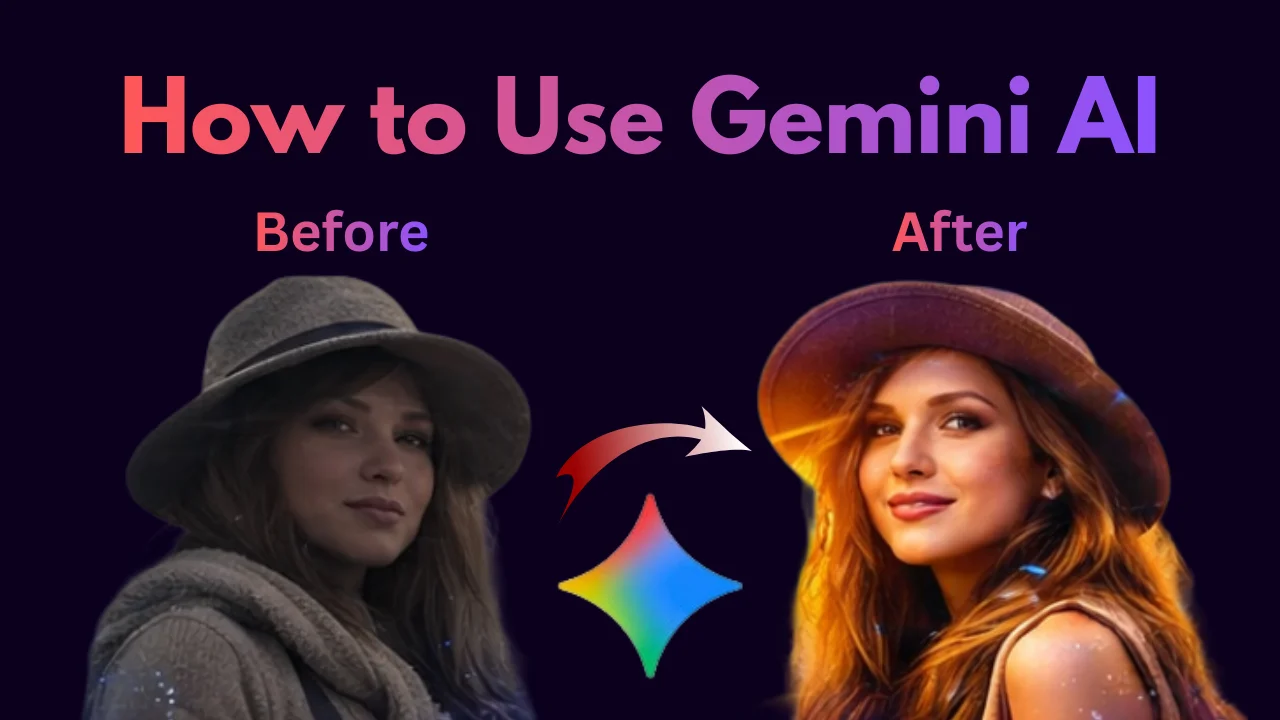
Google Gemini AI stands out as the best AI photo editor for conversational image manipulation, enabling users to edit uploaded photos through natural language commands. Gemini AI functions as Google’s multimodal large language model, which was previously known as Bard, to enable users to process and generate text, images, and audio and video content. The system consists of three models, which include Gemini Flash Image (Nano Banana) and Gemini 3 Pro Image Preview Nano Banana Pro, that allow users to perform advanced image analysis and creation without requiring separate additional plugins.
Google Gemini AI provides cross-modal reasoning capabilities because it can evaluate uploaded photos to create edited versions based on provided descriptions, which makes it suitable for photo editing purposes. How to Use Gemini AI for Photo Editing? The system of Gemini AI can perform all its functions because it transforms replace the background with a sunset while keeping the subject’s lighting natural into actual results that match professional standards up to 4K resolution.
Google Gemini AI Overview
This presents a flexible platform that users can access through the Gemini application, AI Studio to control all functions from conversation to picture manipulation. Google Gemini AI Main Functions offer text-to-image generation, image-to-image editing, and multi-turn conversation capabilities which users can apply to their authentic Synth ID watermarked content. This functions as an image editor users can access through its image editing platform by uploading their photos to use natural language for altering image elements. The basic system operates at no cost, while paid tiers provide better limits, and customers can use up to reference images for consistent professional results.
How to Use Gemini AI for Photo Editing
How to use Gemini AI transforms ordinary photos into professional masterpieces through iteasy-to-use text-baseded interface, which works with its multimodal models to create advanced results.
- Access the Platform to start your process by opening Google AI Studio through aistudio.google.com or using the Gemini mobile application on either Android or iOS to access all capabilities without needing any downloads.
- The Sign In and Select Model process requires users to log in through their Google account and select from Gemini 2.0 Flash (fast edits), Gemini 2.5 Flash Image, or Gemini 3 Pro Image, Preview, which provide specific photo editing solutions based on different complexity levels.
- The New Editing Session process starts when you choose or begin a chat, which creates a space for dialogue where you can upload images and perform multiple rounds of image modifications through Gemini AI for professional photo editing.
- Upload your photo, or use the attachment icon (+) to select from gallery, camera, or drag-and-drop PNG/JPEG files (up to 20MB recommended); Gemini analyzes the image instantly for context-aware edits, such as detecting subjects, lighting, and backgrounds.
- The process of creating your Gemini AI photo prompt starts when you write a detailed description through turn this selfie into a professional headshot: smooth skin, brighten eyes, add soft studio lighting, corporate background, which must include specific details on removing or adding or changing elements, and selecting between photorealistic and vintage style,s and keeping the expression natural.
- The generation process requires you to set up temperature (0.2 for precise, realistic edits; 1.0 for creative variations), and you need to choose between1:1 square and 16:9 wide and 4K maximum resolution to configure according to your social media and print output requirements.
- The output requires you to create follow-up responses, namely, which include deep shadows on the face while keeping skin tones warm nd reference the previous image swap background to a modern office to establish how to use Gemini AI for professional work.
- The consistency of your work requires you to upload references, include match lighting from the image, because this method works best for Gemini AI photo editing tutorial scenarios when you need to edit entire product shot series or group portrait photos.
- Advanced Edits Enable You to Apply advanced editing functions through Gemini by using complex prompts, which include painting the blemishes, painting the canvas to add a frame, stylize as an oil painting.
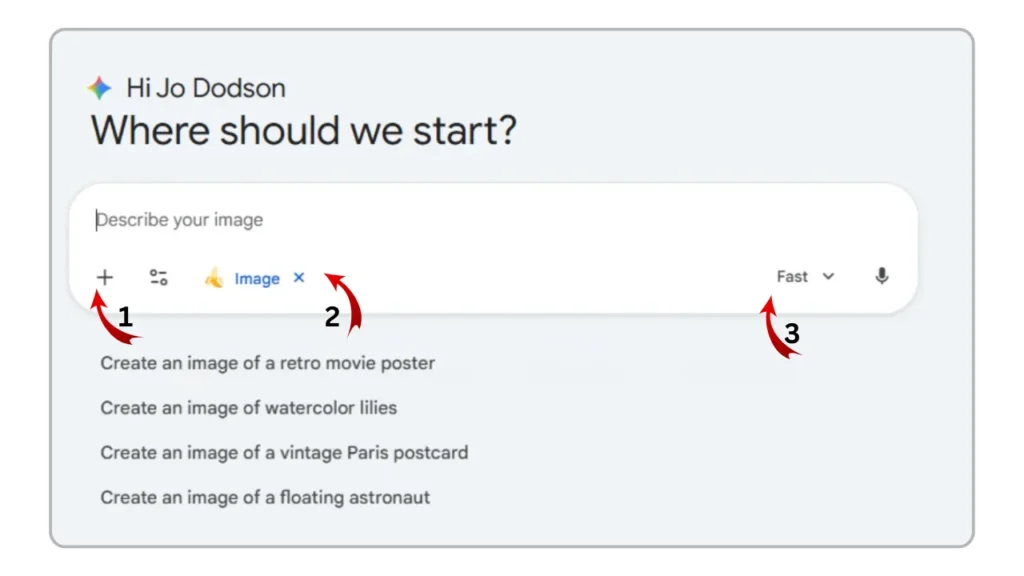
Accessing Google Gemini AI Image Editor
The Google Gemini AI image editor provides straightforward and accessible access, which lets users begin learning the photo editing functions without facing any difficulties. Users should begin their journey at aistudio.google.com , which provides Google account access to all features after login. The user starts a new chat by selecting the “New prompt” option and then chooses between Gemini image and Gemini 2.0 Flash, which provide advanced image transformation capabilities. Users can upload images through the interface by using the attachment icon, which supports PNG and JPEG file formats up to a maximum file size, while the system delivers immediate AI analysis to identify photo elements such as subjects, lighting, and backgrounds.
Advanced Gemini AI Photo Prompts
Advanced Gemini AI photo prompts raise the standard by providing detailed instructions and reference materials, which serve as professional photo editing tools for the users. The user needs to open multiple images and issue commands to change the person’s pose while maintaining their face and outfit from reference image 2, or they can request multiple edits with the command to separate the subject and add vintage film grain while enhancing textures without exceeding saturation limits.
The techniques enable series to maintain a consistent appearance, which allows up to 14 reference images for group portraits or product lines. The command restore this to 4K modern photo quality in full color achieves pro-level results, while the command overlay the current London weather on this skyline demonstrates functions with search grounding features. Users can develop layered prompts to apply style transfers, inpainting, or expansions. This functions as a flexible editor through natural language, which enables users to create advanced image edits similar to Photoshop.
Gemini AI Photo Prompt Basics
The basic elements help users show their complete abilities with Gemini AI to achieve impressive visual effects. Users should emphasize details to transform basic instructions into advanced editing procedures.
- Be Descriptive: The user needs to define all elements for their portrait by describing the subject matter,d their preferred changes and style requirements, and what should be maintained: smooth skin on this portrait, bright eyes naturally, add soft studio lighting, and keep original expression intact.
- Prompt Structure Formula: Always establishes a structured format that uses “Action + Details + Style” to express removing the backpack from the subject, replacing the background with a sunny beach, apply cinematic golden hour lighting. The system achieves precise results with this defined structure.
- Incorporate Negatives for Quality: Users should include no distortions, no artifacts, and photorealistic to the prompt, which helps Nano Banana models maintain their high fidelity for tutorial tasks.
- Subject Focused Examples: For portraits enhance facial features, reduce blemishes subtly, professional headshot style test variations to refine how to use Gemini AI for photo editing effectively.
- Style Variety Tips: Users should try vintage film HDR boost, and minimalist flat lay to create outputs suitable for social media, which uses features for multiple output options.
- Length Optimization: Prompts should stay within 50-150 words, which makes short prompts too vague and long prompts too confusing. This range provides the best results for editors on the first attempt.
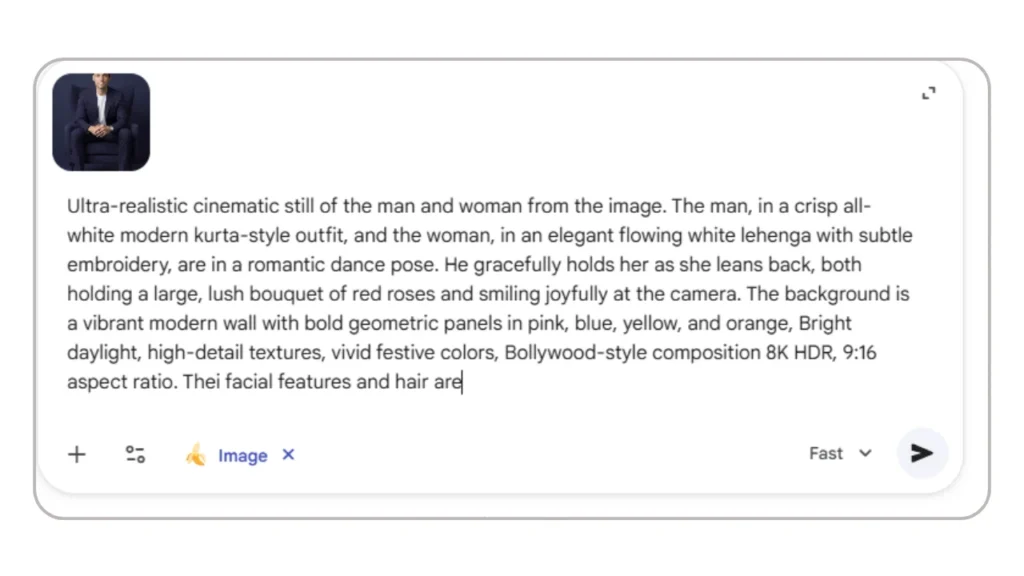
Edit Photos Using Gemini AI
Users can edit photos through an intuitive process, which follows the same steps as professional software but requires text commands. The user first needs to access the Gemini app or AI Studio before they can upload their image through the icon. The user needs to create a prompt that states remove the crowd, add a sunset background. The user will generate the output, which they will review for accuracy before refininge it with deepen the shadows slightly. User needs to modify the settings for aspect ratio and size before they can save or share the finished high-resolution image. The user should automate their process. This conversational flow makes the tutorial accessible and powerful, ideal for quick fixes or complex best AI photo editor transformations.
READ Also: Gemini Boys Photo Editing Prompts You Must Try
Gemini AI Photo Editing Tutorial
The tutorial brings concepts to life through hands-on demos, starting with uploading a product photo and prompting add a lifestyle scene on a wooden table with natural light for e-commerce appeal. The user begins by applying professional lighting to selfies while removing blemishes from the subject and enhancing the background blur to achieve headshot-ready results. A key tutorial tip is using numbered lists in prompts like change the sky to a starry night boost saturation. Sharpen details of this sequences edits for precision. Save iterations in chats for consistency, empowering users to master Gemini AI features and create stunning visuals effortlessly.
Conclusion
The complete Google Gemini AI photo editing system becomes operational through training, which enables users to master photo editing skills. The system begins with a Gemini AI photo prompt, which develops into iterative edits that deliver superior results when compared to Gemini AI versus ChatGPT for exact changes.
FAQs
1. What is Gemini AI?
Google’s multimodal AI for text/image editing via prompts in AI Studio/app.
2. How to access the Gemini AI image editor?
Users can access the image editor through aistudio.google.com or the Gemini app after they create a free account with their Google credentials.
3. Best Gemini AI photo prompt tips?
Apply the formula “Action + Details + Style” by using the example “smooth skin, beach background.”
4. Gemini AI for professional photo editing?
Yes, the system allows users to perform inpainting work and 4K restorations while using up to reference images.
5. How to edit photos using this?
Users follow the process from Upload, which leads to Generate and then to Refine before they can download their results.
6. What are the limitations?
The system enforces a daily usage, while users must adjust their prompts to prevent the creation of artifacts.
The content on CoolEdits is written by a passionate creator M Naveed with hands‑on experience in photo editing, AI prompt engineering, and social media trends. With a strong focus on practical results, the author regularly tests tools, analyzes trends, and shares techniques that actually work for modern content creators.