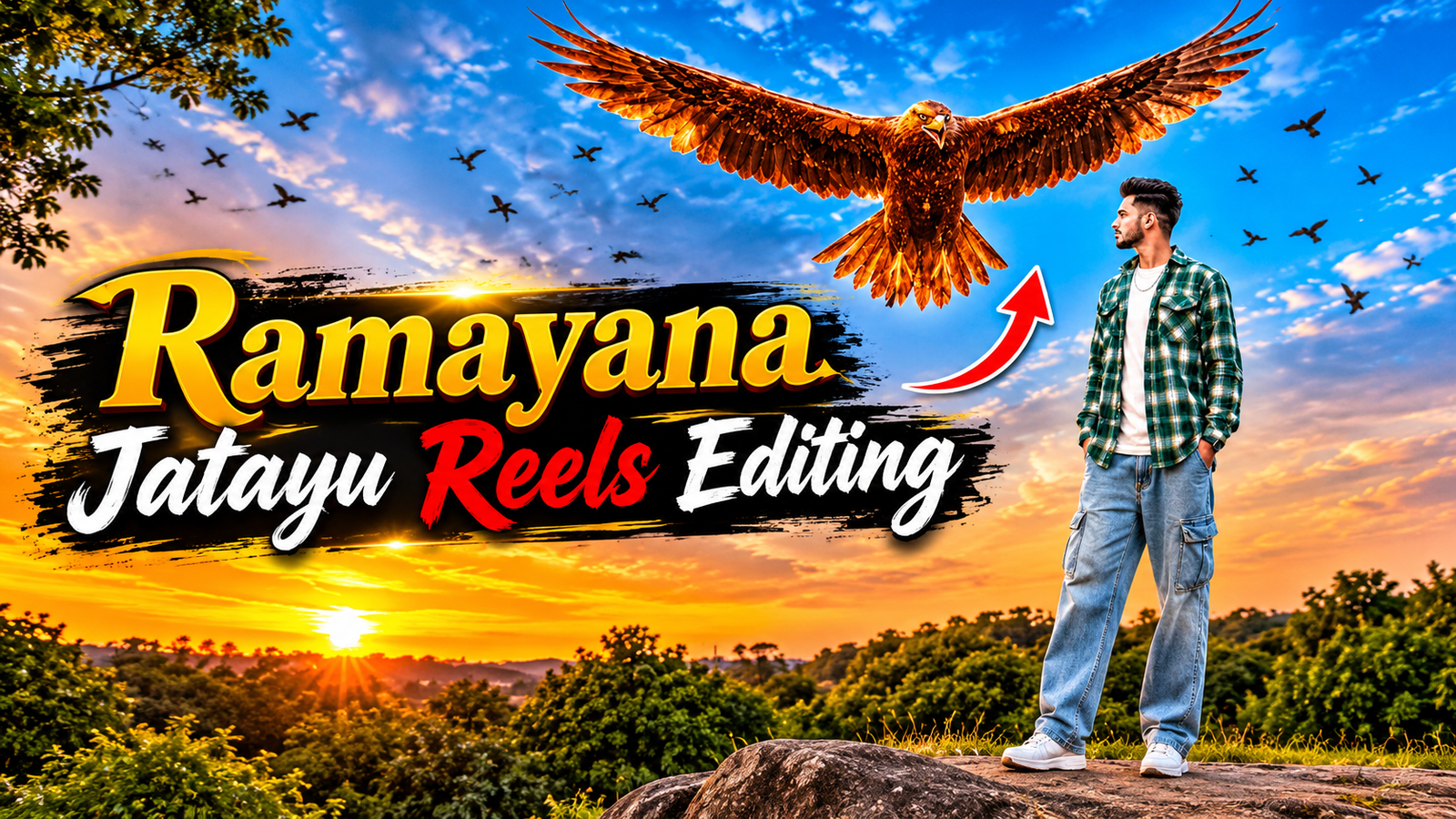
Want to create stunning Ramayana Jatayu AI Reels? Follow this step-by-step tutorial to learn how to use Google Flow, reference images, reference videos, and powerful AI prompts to create cinematic eagle effects and realistic visuals. Copy the ready-to-use prompts, follow the editing steps, and create your own viral-style Jatayu Reel! Watch the complete tutorial, try it yourself, and start creating amazing AI videos today!
Watch the Jatayu Edit Viral Trend Reference Video 🔥
Before creating your own AI video, take a look at the original Jatayu Edit viral reel below. This will give you a clear idea of the visuals, transitions, and effects so you know what to expect when recreating the trend.
Tap the button below to download the reference video.
Before Using This AI Prompt, Keep These 5 Things in Mind
- Download the silent reference video: First, download the folder shared above. When using Google Flow, upload only the 10-second video without audio, as the version with sound may cause an error.
- Choose a clear photo: Use a high-quality, front-facing picture where your entire face is clearly visible. Good lighting and sharp facial details will help the AI create a more accurate result.
- Pick the right outfit: The AI uses the clothes shown in your uploaded photo for casual scenes. For the festive scenes, the outfit changes to a yellow traditional suit, so keep that in mind before generating.
- Check your Google Flow settings: Select Ingredients mode, choose a 9:16 aspect ratio, set the resolution to 720p, and generate one video. If you run into an audio error, try enabling the “Return silent video” option in Settings, if available.
- Add the music after generating: Once your video is ready, open it in CapCut or VN Editor. Import the song from the downloaded folder and place it at the very beginning of your video so the music plays from the first second.
{Use @video1 as the strict reference for all actions, gestures, timing, camera movements, framing, editing, the giant eagle, the flying birds, and all visual effects. Replace the man in @video1 with the character from @image1, preserving his complete character design—face, hair, beard, skin tone, body proportions, clothing, and distinctive details—with his face clearly visible and identical to @image1 from the first frame to the last, without blending or morphing with the original man. Maintain the giant reddish-brown eagle exactly as seen in @video1, keeping its massive scale, glowing golden-brown feathers, slow powerful wingbeats, and the exact timing as it rises behind him with wings spread wide, along with the flock of small birds flying around. Preserve the original environment and cinematography, including the sky, clouds, dry bushes, lamp posts, warm golden color grade, low camera angle, duration, and aspect ratio, changing only the man’s appearance. Keep the sky and entire frame completely clean and free of any text, titles, captions, or overlays. Negative Prompt: text, letters, words, titles, captions, subtitles, original man’s face, identity swap, face morphing, appearance drift, altered actions, smaller eagle, missing eagle, extra characters, distorted faces, extra limbs, distorted wings, flickering, new scenes, logos, watermarks.

}

The content on CoolEdits is written by a passionate creator M Naveed with hands‑on experience in photo editing, AI prompt engineering, and social media trends. With a strong focus on practical results, the author regularly tests tools, analyzes trends, and shares techniques that actually work for modern content creators.